TIFF Merge and Split Utility
Author: Kerry D. Wong
This application is released under BSD License.
Introduction
As the name indicates, this utility provides functionality to
1. Extract pages from multi-frame TIFF file(s) (TIFF file that contains multiple pages of images) into single-frame TIFF files.
2. Combine multiple single-frame or multi-frame TIFF files into one multi-frame TIFF file.
This utility comes with a command line executable and a GUI application. The command line version can be used to create automated batch jobs while the GUI version provides user an easy way to manipulate files.
GUI
During setup, an Icon is created under All Programs. The default windows looks like:
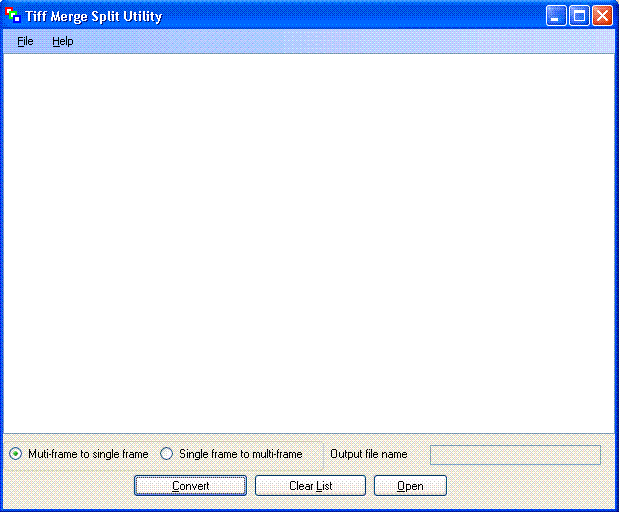
TIFF files to be converted can be dragged and dropped into the list window. The order of the file list can also be changed by dragging and dropping files to their desired locations (this is useful when combining multiple single or multi-frame TIFFS into one multi-frame TIFF file).
When converting multi-frame TIFF files into single frame TIFF files, multiple input files can be selected, the results will be saved to a folder with the same name as the muti-frame TIFF file with numbers indicating the frame order. For example, if a multi-frame file C:\temp\test.tiff has three frames, the resulting files will be C:\temp\test\test_1.tiff, C:\temp\test\test_2.tiff, C:\temp\test\test_3.tiff.
When converting multiple TIFF files (each file can be either single frame or multi-frame) into a single multi-frame TIFF file, you will need to specify the output file name (including path). In this case, the order at which the files appeared in the list determines the page order in the resulting multi-frame TIFF image.
Command Line:
The default installation folder is C:\Program Files\TIFF Merge Split Utility. And the command application can be launched by TiffMS.exe.
Usage: TiffMS [-h|-s|-o -m] | [-c]
-h show help
-s split multi-page tiff file(s) into single-page tiff files
-o output file name
-m merge single-page tiff files into a single multi-page tiff file
-c the configuration file nameExamples:
TiffMS -s a.tiff
split a.tiff into a_1.tiff a_2.tiff …
TiffMS -s a.tiff c:\temp
split a.tiff and put splitted files into c:\temp.
TiffMS -o out.tiff -m a.tiff b.tiff
Merge a.tiff and b.tiff into a single tiff file out.tiff.
TiffMS -c test.config
Merge or split files according to settings in test.config
The last option (-c) makes it easy to manipulate files according to a configuration file. The configuration file is a text file and here are two samples:
1. For splitting files:
#Sample
ACTION = SPLIT
SOURCE_DIR = c:\source_dir
DESTINATION_DIR = c:\dest_dir
INPUT = …
1.tif …
test1.tif …
test2.tif
2. For combining multiple files:
#Sample
ACTION = MERGE
SOURCE_DIR = c:\src_dir
INPUT = …
1.tif …
test1.tif …
test2.tif
OUTPUT = test.tif
Core Functions Source Code:
Update:
The default EncoderValue may cause "Parameter is not valid" Exception. Please refer to the latest post for more details.

Kerry,
tiffms_cmd.exe is producing a file, but it appears to be corrupt for some software. Microsoft Office Document Imaging (mspview.exe) throws an error and refuses to open the file. dumptif.exe uncovered following:
C:\download\tiffms_cmd\out>dumptif out.tif
dumptif version 1.22, by sfaxtools studio
Welcome to my dumptif. It’s fully free.
Developed by Kevin Zhu, sfaxtools studio,2002.10.
Copyright 2002.10-2004.3.
All rights reserved.
http://www.sfaxtools.com
—————————————————————————
Tiff Filename: out.tif
———————— Tiff Header ————————
Byte order: 4949 (/ 18761)
TIFF/FMF flag: 2a (/ 42)
Offset Of first IFD: b392 (/ 45970)
———————- Tiff IFD (offset: 0x0000b392) ———————-
number of entries: 14
FieldTag (Dec) Type count Value or Offset (Hex (/ Dec))
——————————– —- —– —————————–
254( NewSubfileType) 4 1 0 (/ 0)
256( ImageWidth) 3 1 6a0 (/ 1696)
257( ImageLength) 3 1 898 (/ 2200)
258( BitsPerSample) 3 1 1 (/ 1)
259( Compression) 3 1 4 (/ 4)
262(PhotometricInterpretation) 3 1 0 (/ 0)
273( StripOffsets) 4 1 8 (/ 8)
277( SamplesPerPixel) 3 1 1 (/ 1)
278( RowsPerStrip) 4 1 898 (/ 2200)
279( StripByteCounts) 4 1 b37a (/ 45946)
282( XResolution) 5 1 b382 (/ 45954)
283( YResolution) 5 1 b38a (/ 45962)
293( T6Options) 4 1 0 (/ 0)
296( ResolutionUnit) 3 1 2 (/ 2)
———————- Tiff IFD (offset: 0×00018622) ———————-
number of entries: 14
FieldTag (Dec) Type count Value or Offset (Hex (/ Dec))
——————————– —- —– —————————–
254( NewSubfileType) 4 1 0 (/ 0)
256( ImageWidth) 3 1 6a0 (/ 1696)
257( ImageLength) 3 1 898 (/ 2200)
258( BitsPerSample) 3 1 1 (/ 1)
259( Compression) 3 1 4 (/ 4)
262(PhotometricInterpretation) 3 1 0 (/ 0)
273( StripOffsets) 4 1 b440 (/ 46144)
277( SamplesPerPixel) 3 1 1 (/ 1)
278( RowsPerStrip) 4 1 898 (/ 2200)
279( StripByteCounts) 4 1 d1d2 (/ 53714)
282( XResolution) 5 1 18612 (/ 99858)
283( YResolution) 5 1 1861a (/ 99866)
293( T6Options) 4 1 0 (/ 0)
296( ResolutionUnit) 3 1 2 (/ 2)
Read IFD Error: error of directy entry numers!
—————————— Summary ——————————
Compression Mode: 4=Group 4 Fax
Total Pages: 1
—————————— END ———————————-
I am having a problem with view the tiff after the program has run. It says it is still open and that I cannot open it. Any advice?
Hi Kerry, thanks for writing this. I got the CMD version working. I do get an error in Microsoft Office Document Imaging that the file can’t be opened on the same PC that it was created on, but it opens on others. Strange but I’ve got some workarounds in place. Thanks again.
Glad you found it useful.
Kerry D. Wong! I`m from Russia. Thanks for this project, because it`s so necessary for documentation creation process.
Hi Kerry,
I have used your command line utility successfully for files without spaces and it works like a charm.
But it does not work where file name has space in it.
i.e. if i need to merge two files
sample 12.tif and sample 45.tif
and the merge file name is: sample 78.tif
then this does not work in command line prompt.
Any suggestions?
It should work if you use quotes to qualify the file name: e.g. “test 123.tif”
it worked with quotes kerry..thank you..
Hi Kerry,
I am looking for solution to merge multiple tiff files to one on my company’s website.
Please give me an advice, can I use your source code to get this done.
I am very new to .net.
Any detail advice will be highly appreciated.
Regards,
Satti
If you find it useful, you can certainly use it wherever you see fit.
Hi Kenny!
I am trying to use your utility to merge two .tiff files, but get the following error message. I am using the command line, with the following command:
C:\Program Files\TIFF Merge Split Utility>TiffMS -o out.tiff -m final.tiff final
2.tiff
Can you see where I might be going wrong? Both .tiff files (final.tiff and final2.tiff) are in the C:\Program Files\TIFF Merge Split Utility directory. Thanks!
Unhandled Exception: System.IO.FileNotFoundException: final.tiff
at System.Drawing.Image.FromFile(String filename, Boolean useEmbeddedColorMan
agement)
at System.Drawing.Image.FromFile(String filename)
at KerryWong.TiffMS.Utils.MSUtils.ConvertToMultiPageTiff(List`1 fileNames, St
ring outputFileName)
at KerryWong.TiffMS.Program.ProcessCommandLine(String[] args)
at KerryWong.TiffMS.Program.Main(String[] args)
It looks like you got a FileNotFound exception, which seems to me could be that your file names have spaces (or space in your path).
I’d put your parameters in quotes and try running again.
I placed the program files into a c:\tiff directory –> not sure if that’s what you meant by the problem perhaps being a “space in your path.” I also enclosed the file names in quotes. Is that what you meant?
C:\tiff>TiffMS -o “out.tiff” -m “final.tiff” “final2.tiff”
Same error message, I am afraid. :(
I took a look at my original code (it has been a long while), anyway, you will need to supply a path to your output file. For instance:
TiffMS -o c:\temp\out.tiff -m final.tiff final2.tiff
Could you give that a try?